If you are wondering How to Connect AirPods to Android, you are in the right place. Many people think AirPods only work with iPhones, but they can also connect to Android phones easily. In this guide, we will show you simple steps, tips, and tricks to make your AirPods work perfectly with your Android device. Whether you just bought AirPods or want to use them with an Android phone you already have, this guide will help you avoid confusion and enjoy your music, calls, and podcasts without any problems.
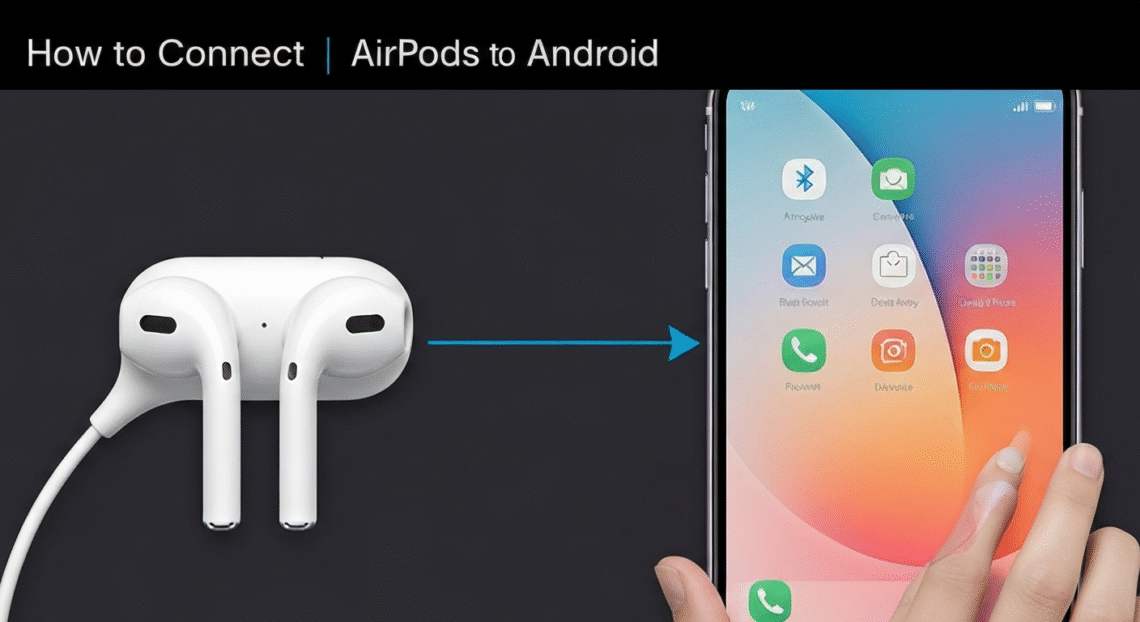
Connecting AirPods to Android is simple once you understand the steps. First, you need to check if your Android phone supports Bluetooth. Most modern Android phones do, so this will not be a problem. Next, make sure your AirPods have enough charge. Open the AirPods case and keep it close to your phone. Press and hold the small button on the back of the AirPods case until the LED light starts blinking white. This means your AirPods are ready to pair. On your Android phone, go to Settings, then Bluetooth, and search for new devices. Your AirPods will appear in the list, and you can tap on them to connect.
How to Connect AirPods to Android: Step-by-Step Guide
Connecting AirPods to Android is easy if you follow the steps correctly. First, make sure your Android phone has Bluetooth turned on. Open the AirPods case and press the small button on the back until the light starts blinking white. This shows the AirPods are ready to pair. On your phone, go to Settings, then Bluetooth, and look for your AirPods in the list of available devices. Tap on the name to connect. Once connected, you can listen to music, take calls, and enjoy wireless freedom. Remember, some features like Siri or automatic ear detection may not work, but sound quality and calls will work perfectly on Android phones without any extra tools.
Tips to Make AirPods Work Perfectly on Android
To make AirPods work perfectly on Android, there are some simple tips to follow. Always keep your AirPods fully charged to avoid disconnection. Make sure your phone is updated to the latest Android version for better Bluetooth performance. Use the AirPods case to reset them if connection problems occur. Keep them clean to ensure sound and microphone work correctly. You can also use third-party apps to check battery levels and customize tap functions. Avoid keeping your phone far from the AirPods, as distance can weaken the connection. With these tips, your AirPods will deliver smooth music, calls, and podcasts every time you use them with Android devices.
Common Problems When Connecting AirPods to Android and Fixes
Sometimes, AirPods may not connect to Android phones immediately, but most issues have simple fixes. One common problem is the phone not detecting AirPods. Try turning Bluetooth off and on, restarting the phone, or resetting AirPods by holding the case button. Another issue is low volume or poor sound. Cleaning AirPods and checking phone volume settings usually helps. If only one AirPod works, make sure both are in the case and charged. Occasionally, distance or interference can cause connection drops. Following these steps and troubleshooting tricks ensures AirPods work well with Android phones, making them reliable for music, calls, and daily use without frustration.
AirPods Features You Can and Cannot Use on Android
Using AirPods on Android is fun, but not all Apple features work. Features like automatic ear detection, Siri, or spatial audio are not available on Android phones. However, the main functions like listening to music, watching videos, and making calls work perfectly. Double-tap actions can sometimes be customized with third-party apps to pause, play, or skip tracks. The sound quality, microphone, and battery life still deliver a great experience. Android users can enjoy the portability and comfort of AirPods while using most essential features. Knowing which features work and which do not helps avoid confusion and lets you enjoy AirPods easily on Android devices.
Best Apps to Enhance AirPods Experience on Android
Several apps can make AirPods work better on Android phones. Apps like AirBattery or Assistant Trigger show battery levels for each AirPod and the case. These apps can also allow you to customize double-tap actions, making AirPods more functional on Android. Some apps even give notifications when AirPods connect or disconnect. Using these apps ensures you get more Apple-like experience even on Android. They are easy to install and free for basic functions. With the help of these apps, AirPods users can track battery, set actions, and enjoy a smoother music and call experience, making wireless listening easy and fun every day on Android devices.
Troubleshooting AirPods Connection Issues on Android
If AirPods do not connect or drop frequently on Android, troubleshooting is easy. First, check Bluetooth is on and AirPods are charged. Reset AirPods by holding the case button until the light flashes amber then white. Restart your phone if connection still fails. Keep AirPods close to your phone during pairing and avoid interference from other devices. Cleaning the AirPods can fix microphone or sound issues. Sometimes uninstalling Bluetooth cache or updating the Android phone helps. These simple steps usually solve connection problems. With proper care and easy fixes, AirPods will stay connected, deliver clear sound, and work well for music, calls, and videos on Android devices.
AirPods Battery Tips for Android Users
AirPods have long battery life, but you can make it last even longer with simple tips. Always store AirPods in the charging case when not in use. Fully charge them before long trips or workouts. Avoid extreme heat or cold, which can damage battery life. Use third-party apps to monitor battery levels on Android phones. Clean the charging contacts to ensure proper charging. Try not to drain the battery completely every time. With these tips, your AirPods will stay charged longer, perform better, and provide hours of listening, calls, and videos. Good battery care makes AirPods a reliable accessory for Android users every day.
Conclusion
Connecting AirPods to Android is simple and fun when you know the right steps. Even though AirPods are made for Apple devices, they work very well with Android phones. You can listen to music, watch videos, and take calls without wires. It is important to keep Bluetooth on, charge AirPods fully, and pair them correctly. Using third-party apps can make your experience even better. You can see battery levels, customize taps, and enjoy smooth music without any trouble.
Sometimes, AirPods may not connect right away, but most problems are easy to fix. Resetting the AirPods, restarting your phone, or cleaning them usually solves the issue. Even if some Apple features do not work, the main functions like sound, call clarity, and portability remain excellent. AirPods are small, light, and comfortable to wear for long hours. They are perfect for listening while walking, working, or exercising.